
How to add an event to Google Calendar clearly and quickly
A straightforward guide showing steps to add an event to Google Calendar, with practical tips and safeguards for accuracy and reminders.

If you need to place an event on Google Calendar, start by opening the calendar app and selecting the date. The goal is to create a clean event entry with a clear title, time, and location so attendees can see it at a glance. This guide walks through the basic steps and common options to ensure your event stays accurate and easy to share.
You’ll learn the simplest path for quick additions, plus how to adjust reminders, add conferencing links, and invite others. The process works the same across platforms, with small differences for mobile and web versions. By the end, you should be able to add events with confidence in minutes rather than minutes of guessing.
We’ll also cover pitfalls to avoid, like double bookings or missing time zones, and point you to practical tips for keeping your calendar tidy. Whether you’re coordinating a community meeting or a personal appointment, the steps below apply and you can adapt them to your workflow.
- Open Google Calendar and choose create, then enter a clear title, date, time, and location.
- Add attendees if needed, and set reminders to improve turnout.
- Edit entries later for changes, keeping attendees informed and notes concise.
Basics of adding events
Create a new event
Begin by clicking or tapping the create button, then enter a concise title that captures the purpose of the event. Pick the correct date and start time, and verify the duration to avoid overlap with other commitments. Add a location or conferencing link so attendees can join easily. To start, you will want to know how to add an event to the Edinburgh events calendar for planning crowds and coverage.
If the event repeats, choose the recurrence option and set frequency, end date, and exceptions. Confirm the calendar where the event will be saved and check for any time zone differences that could shift the timing for some participants.
Finally, save the event and review the entry for typos. A quick glance helps prevent miscommunications and ensures attendees have accurate details before the event begins.
Invite attendees and reminders
Add guests by email to extend the invite and enable RSVP tracking. You can customize permissions, letting others modify event details or view guest lists. Reminders can be set to alert attendees ahead of time, reducing late arrivals.
For larger events, consider sending a secondary reminder a day before and one hour prior to start. If your calendar supports conferencing, add the video link during setup so all participants have direct access.
Review the guest list to avoid inviting people by mistake and adjust notification settings if needed. A well-timed reminder helps ensure attendance and clarity about expectations.
- Invite by email with clear RSVP options.
- Set multiple reminders for important events.
- Attach conferencing links for online meetings.
Viewing and editing events
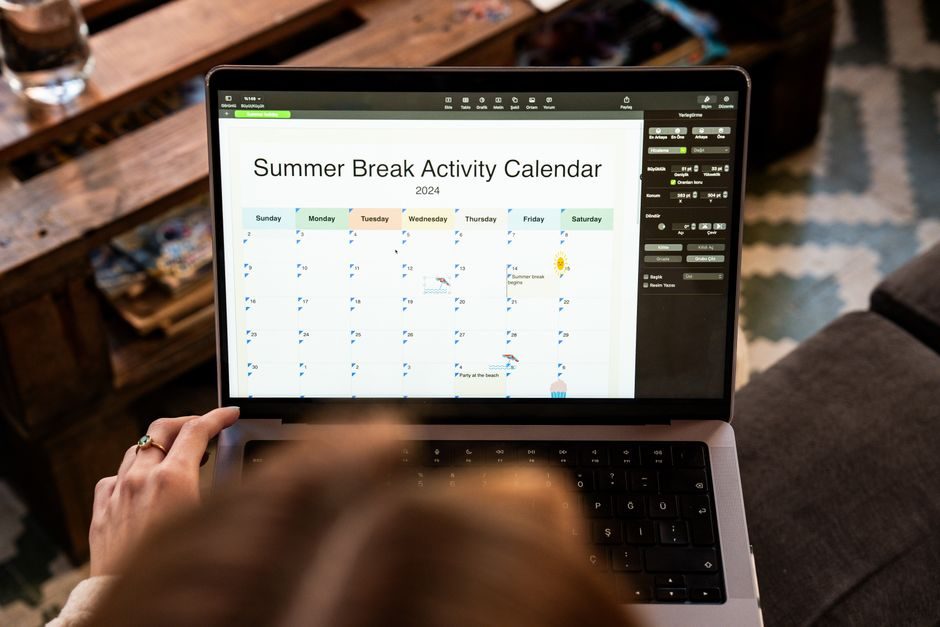
Edit event details later
Open the event to change title, time, or location as plans shift. Changes save automatically in many apps, but it’s wise to recheck guest invitations after edits. Ensure added notes remain relevant and concise. For further information on site navigation, see edinburghdaily.uk and how it presents local events.
- Adjust reminder timing after changes.
- Resend or update conferencing links if needed.
- Recheck guest visibility and responses.
If a time zone or date changes, notify attendees with a brief update noting the reason. Use the update feed or comments to keep everyone aligned without sending separate messages.
Older events can be archived or hidden to keep the calendar uncluttered. Regular reviews help you maintain an accurate schedule and avoid confusion.
- Open and modify event fields as needed.
- Notify guests of changes with a brief update.
- Archive or hide past events for clarity.
Color-coding and organization
Color labels help distinguish personal from work events at a glance. Assign a color to a calendar or event to improve readability and quick scanning. Regularly review your color scheme to keep it meaningful.
Consider grouping related events into a dedicated calendar if you juggle multiple projects. This separation reduces clutter and makes prioritization simpler. You can still view all calendars in a single pane for context.
Keep descriptions short but informative; a few sentences noting venue, time, and purpose are often enough. Streamlined notes prevent readers from scanning long blocks of text during planning.
Using links and notes
Attachments and conferencing
Attach files or documents if they are essential for the event. Direct links to agendas or slides let attendees prepare ahead of time. If video conferencing is involved, place the link in the agenda or description. If you are thinking about broader exposure, consider how to add your business to the Edinburgh business directory as part of broader outreach.
Some platforms support adding a meeting room or dial-in details directly in the event. This makes access straightforward for participants who have limited connectivity or prefer phone options. Always test links before sending invites.
Keep any attachments relevant and small in size to avoid download delays. A concise, accessible agenda helps attendees arrive prepared and on message.
- Attach essential documents to the event.
- Include conferencing links in the description.
- Test access details before sending invites.
| Method | Pros | Cons |
|---|---|---|
| Add event manually | Fast for single items; simple interface | Prone to mistakes if rushed |
| Use recurring events | Saves time for repeats | Requires careful end date and exceptions |
| Attach links and notes | Provides context and materials | Can clutter if overused |
Notes that aid planning
Notes can capture details like parking instructions or dress code. They should be brief and actionable to avoid misinterpretation. Revisit notes if the event evolves and update accordingly.
When public announcements are involved, ensure notes reflect current information and avoid overpromising. Clear notes reduce back-and-forth questions from attendees.
If an event is canceled or postponed, leave a note in the event description and update attendees promptly. Prompt updates prevent confusion and missed plans.
Compare native calendar features with third‑party apps to find a workflow that fits daily routines.
Other calendar features

Sync across devices and apps
This subsection explains how to keep all your Google Calendar data consistent on your phone, tablet, and computer. Set up the Google app on each device and enable sync to ensure changes propagate in real time. Use the same account to avoid duplicated events or missing updates. If you are organizing a sale or community drive, consider steps to sell second-hand items in Edinburgh to coordinate space and time.
Compare native calendar features with third‑party apps to find a workflow that fits daily routines. For example, some users prefer color‑coding by category, while others rely on smart suggestions for event times. The goal is to reduce manual edits by leveraging built‑in tools.
Be mindful of permission settings and account switching, which can interrupt syncing. Regularly verify that new events show up across devices within a few minutes. If you notice delays, check internet connectivity and app permissions.
- Use the same Google account on all devices
- Enable calendar sync in app settings
- Choose color codes for event types
- Review shared calendar permissions
- Test an event after saving
Advanced options
Custom reminders and notifications
Advanced reminders let you tailor when you are alerted about events. Set multiple notifications, including email summaries or push alerts, to match your routines. This helps you avoid missing important appointments without excessive alerts.
Experiment with different reminder times for different event types. For work, a 15‑minute alert might suffice, while a social event could benefit from a longer lead time. Keep reminders meaningful, not overwhelming.
Review time zones when traveling to prevent misaligned schedules. Google Calendar adjusts automatically, but quick checks ensure meetings start on the correct local time.
- Set multiple reminders per event
- Choose notification methods (pop‑up, email)
- Adjust time zones before traveling
- Test a reminder with a dummy event
- Manage default reminder settings
Common pitfalls

Avoid double bookings
Double bookings create confusion and require extra clicks to resolve. Always check the agenda view before saving a new event to see if a conflicting slot exists. If a conflict is detected, edit the time or attach the event to a different calendar.
When sharing calendars with others, ensure permissions are appropriate to prevent accidental edits. Consider creating a separate calendar for events you’re coordinating to reduce overlap and maintain clarity.
Regularly review your calendars for outdated events or canceled meetings. Archived items can clutter the view and make planning harder.
- Check for existing events before scheduling
- Use separate calendars for different teams
- Hide past events to reduce clutter
- Audit shared calendars quarterly
- Avoid automatic duplications through imports
Practical tips
Quick entry and search
Learn two fast methods to add events: typing natural language to autofill fields, or using quick add with minimal details. Both save time when you’re juggling multiple tasks. The goal is to get a usable event on the calendar with the least friction.
Use the search bar to find events by keyword, date, or participant. Filtering results helps you locate a specific entry without scrolling through days. This is especially useful for busy schedules or shared calendars.
Leverage calendar views to plan the day: switch between day, week, and month to spot gaps and avoid back‑to‑back meetings. A visual scan helps with realistic time estimates and travel buffers.
In the Edinburgh area, public notices and local events can populate the calendar quickly if you keep an eye on city feeds and community boards.
- Use natural language input
- Use quick add for minimal details
- Search and filter effectively
- Switch views to spot gaps
- Keep event titles concise and informative
Frequently asked questions
How do I add an event quickly in Google Calendar?Use natural language input, such as “Lunch with Sam tomorrow at 1pm,” which auto-fills the title and time fields. If you prefer, click the plus button and type essential details—title, date, time, and guests. Save to place the event on your primary calendar.
Can I add events to Google Calendar without an internet connection?You can create events offline on devices with local calendar functionality, and they will sync once you’re online again. To ensure consistency, keep your account signed in and sync enabled on all devices.
What if I need to share an event with others?Open the event and add guests by email. People you invite will receive an invitation link and can RSVP. If you need others to edit, grant them editing permissions on the calendar.
Is there a limit to how many events I can add in a day?There is no hard public limit announced by Google, but practical limits come from your device performance and how you manage notifications. Splitting a busy day into separate blocks helps maintain clarity.
Conclusion
Takeaway 1: Master quick entry, reminders, and viewing modes to keep your day on track with minimal friction.
Takeaway 2: Use shared calendars and permissions thoughtfully to coordinate with teams or family without creating chaos. Next step: test a simple event today and then build a small calendar for a project to practice consistency.
Add Iowa News Updates as a preferred source on Google


